Samasto
Like Samasto
Posted by Unknown On 19:33:00
Here the all Computer Keyboard Shortcuts:
A. Basic Shortcuts
1. Alt + F {File menu options in current program}
2. Alt + E {Edit options in current program}
3. F1 {Universal help for all programs}
4. Ctrl + A {Select all text}
5. Ctrl + X {Cut selected item}
6. Shift + Del {Cut selected item}
7. Ctrl + C {Copy selected item}
8. Ctrl + Insert {Copy selected item}
9. Ctrl + V {Paste}
10. Shift + Insert {Paste}
11. Home {Go to beginning of current line}
12. Ctrl + Home {Go to beginning of document}
13. End {Go to end of current line}
14. Ctrl + End {Go to end of document}
15. Shift + Home {Highlight/Select from current position to beginning of line}
16. Shift + End {Highlight/Select from current position to end of line}

B. Microsoft® Windows® Shortcuts
17. Alt + Tab {Switch between open applications}
18. Alt + Shift + Tab {Switch backwards between open applications}
19. Print Screen {Create screen shot for desktop screen}
20. Alt + Print Screen {Create screen shot for current program}
21. Ctrl + Alt + Del {Reboot/Windows® task manager}
22. Ctrl + Esc {Bring up start menu}
23. Alt + Esc {Switch between applications on taskbar}
24. F2 {Rename selected icon}
25. F3 {Start find from desktop}
26. F4 {Open the drive selection when browsing}
27. F5 {Refresh contents}
28. Alt + F4 {Close current open program}
30. Ctrl + F4 {Close window in program}
31. Alt + Enter {Open properties window of selected icon or program}
32. Shift + F10 {Simulate right-click on selected item}
33. Shift + Del {Delete programs/files permanently}
34. Holding Shift during Boot up {Boot safe mode or bypass system files}
35. Holding Shift during Boot up when putting in an audio CD {Will prevent CD player from playing}

C. Winkey Shortcuts
36. Winkey + D {Bring desktop to the top of other windows}
37. Winkey + M {Minimize all windows}
38. Winkey + SHIFT + M {Undo the minimize done by Winkey + M and Winkey + D}
39. Winkey + E {Open Microsoft Explorer/Computer}
40. Winkey + Tab {Cycle through open programs on taskbar}
41. Winkey + F {Display the Windows® Search/Find feature}
42. Winkey + F1 {Display the Microsoft® Windows® help}
43. Winkey + R {Open the run window}
44. Winkey + Pause Break {Open the system properties window}
45. Winkey + U {Open utility manager}
46. Winkey + L {Lock the computer -Windows XP® & later}

D. Microsoft Office Word Shortcuts
47. Ctrl + A {Select all contents of the page}
48. Ctrl + B {Bold highlighted selection}
49. Ctrl + C {Copy selected text}
50 Ctrl + X {Cut selected text}
51. Ctrl + N {Open new/blank document}
52. Ctrl + O {Open options}
53. Ctrl + P {Open the print window}
54. Ctrl + F {Open find box}
55. Ctrl + I {Italicize highlighted selection}
56. Ctrl + K {Insert link}
57. Ctrl + U {Underline highlighted selection}
58. Ctrl + V {Paste}
59. Ctrl + Y {Redo the last action performed}
60. Ctrl + Z {Undo last action}
61. Ctrl + G {Find and replace options}
62. Ctrl + H {Find and replace options}
63. Ctrl + J {Justify paragraph alignment}
64. Ctrl + L {Align selected text or line to the left}
65. Ctrl + Q {Align selected paragraph to the left}
66. Ctrl + E {Align selected text or line to the center}
67. Ctrl + R {Align selected text or line to the right}
68. Ctrl + M {Indent the paragraph}
69. Ctrl + T {Hanging indent}
70. Ctrl + D {Font options}
71. Ctrl + Shift + F {Change the font}
72. Ctrl + Shift + > {Increase selected font +1}
73. Ctrl + ] {Increase selected font +1}
74. Ctrl + Shift + < {Decrease selected font -1}
75. Ctrl + [ {Decrease selected font -1}
76. Ctrl + Shift + * {View or hide non printing characters}
77. Ctrl + f {Move one word to the left}
78. Ctrl + g {Move one word to the right}
79. Ctrl + h {Move to beginning of the line or paragraph}
80. Ctrl + i {Move to the end of the paragraph}
81. Ctrl + Del {Delete word to right of cursor}
82. Ctrl + Backspace {Delete word to left of cursor}
83. Ctrl + End {Move cursor to end of document}
84. Ctrl + Home {Move cursor to beginning of document}
85. Ctrl + Space {Reset highlighted text to default font}
86. Ctrl + 1 {Single-space lines}
87. Ctrl + 2 {Double-space lines}
88. Ctrl + 5 {1.5-line spacing}
89. Ctrl + Alt + 1 {Change text to heading 1}
90. Ctrl + Alt + 2 {Change text to heading 2}
91. Ctrl + Alt + 3 {Change text to heading 3}
92. F1 {Open help}
93. Shift + F3 {Change case of selected text}
94. Shift + Insert {Paste}
95. F4 {Repeat last action performed (Word 2000+)}
96. F7 {Spell check selected text and/or document}
97. Shift + F7 {Activate the thesaurus}
98. F12 {Save as}
99. Ctrl + S {Save}
100. Shift + F12 {Save}
101. Alt + Shift + D {Insert the current date}
102. Alt + Shift + T {Insert the current time}
103. Ctrl + W {Close document}

E. Microsoft Office Excel Shortcuts 
104 F2 {Edit the selected cell}
105. F5 {Go to a specific cell}
106. F7 {Spell check selected text and/or document}
107. F11 {Create chart}
108. Ctrl + Shift + ; {Enter the current time}
109. Ctrl + ; {Enter the current date}
110. Alt + Shift + F1 {Insert new worksheet}
111. Shift + F3 {Open the Excel® formula window}
112. Shift + F5 {Bring up search box}
113. Ctrl + A {Select all contents of worksheet}
114. Ctrl + B {Bold highlighted selection}
115. Ctrl + I {Italicize highlighted selection}
116. Ctrl + C {Copy selected text}
117. Ctrl + V {Paste}
118. Ctrl + D {Fill}
119. Ctrl + K {Insert link}
120. Ctrl + F {Open find and replace options}
121. Ctrl + G {Open go-to options}
122. Ctrl + H {Open find and replace options}
123. Ctrl + U {Underline highlighted selection}
124. Ctrl + Y {Underline selected text}
125. Ctrl + 5 {Strikethrough highlighted selection}
126. Ctrl + O {Open options}
127. Ctrl + N {Open new document}
128. Ctrl + P {Open print dialog box}
129. Ctrl + S {Save}
130. Ctrl + Z {Undo last action}
131. Ctrl + F9 {Minimize current window}
132. Ctrl + F10 {Maximize currently selected window}
133. Ctrl + F6 {Switch between open workbooks/windows}
134. Ctrl + Page up & Page Down {Move between Excel® worksheets in the same document}
135. Ctrl + Tab {Move between two or more open Excel® files}
136. Alt + = {Create formula to sum all of above cells}
137. Ctrl + ‘ {Insert value of above cell into current cell}
138. Ctrl + Shift + ! {Format number in comma format}
139. Ctrl + Shift + $ {Format number in currency format}
140. Ctrl + Shift + # {Format number in date format}
141. Ctrl + Shift + % {Format number in percentage format}
142. Ctrl + Shift + ^ {Format number in scientific format}
143. Ctrl + Shift + @ {Format number in time format}
144. Ctrl + g {Move to next section of text}
145. Ctrl + Space {Select entire column}
146. Shift + Space {Select entire row}
147. Ctrl + W {Close document}
Posted by Unknown On 21:12:00
A global computer network providing a variety of information and communication facilities, consisting of interconnected networks using standardized communication protocols. It is a massive public spider web of computer connections. It connects personal computers, cell phones, GPS units etc.

Advanced Research Project Agency Network (ARPANET) system is the technical foundation of the Internet was discovering in 1969. In 1989, Internet is popular as world’s largest network for because WWW.

Type of Networks: There are several different types of computer networks.
1.LAN: Local Area Network connection by Cable and speed 10-100 Mbps.
2.MAN: Metropolitan Area Network connection by Electromagnetic Wave and speed 10-100 Mbps.
3.WAN: Wide Area Network connection by Satellite.
4.WLAN: Wireless Local Area Network connection by WiFi and speed 1 to 54 Mbps after manufacture 108 Mbps. Access point within a radius of 65 to 300 feet
5.SAN: Storage Area Network

Advantages of Internet:
1. E-mail (ই-মেইল)
2. Information (তথ্য)
3. Online Services (অনলাইন সেবাসমূহ)
4. E-commerce (ই-কমার্স)
5. Software Downloads (সফটওয়্যার ডাউনলোড)
6. Communication (যোগাযোগ)
7. Entertainment (বিনোদন)

Disadvantages of Internet:
1. Theft of Personal information (ব্যক্তিগত তথ্য চুরি)
2. Internet addiction (ইন্টারনেট আসক্তি)
3. Virus attack (ভাইরাস আক্রমণ)
4. Spamming (বোকা)

Essential elements to connect with internet:
1. Personal Computer
2. Telephone Line
3. ISP Connection (ISP- Internet Service Provider)
4. Modem
5. IP Address (Ex. 192.168.0.1)
6. Browser (Ex. Internet Explorer, Google Chrome, Mozilla Firefox)

IP Address: The computer is identified by an “address”. An IP (Internet protocol) address is an identifier for a particular machine on a particular network. An IP address consists of four sections, separated by periods and each section contains a number ranging from o to 255. (Example: 192.168.0.1).

Transmission Control Protocol/Internet Protocol (TCP/IP): TCP/IP is actually a collection of protocols or rules. It governs the way through which data travels from one machine to another across networks. 

Topology: The physical configuration of a network that determines how the network’s computers are connected. 
A) Ring Topology

B) Mesh Topology

C) Star Topology

D) Bus Topology

E) Hybrid Topology

Web Browser: A browser is software which acts as an interface between the user and inner working of the internet, specifically the World Wide Web. A browser based on graphics or text for make the internet easier to use. Example: Internet Explorer, Google Chrome, Mozilla Firefox, Opera, Safari.

Hyper Text Transfer Protocol (HTTP): HTTP is the set of rules or protocol related to the transfer of Hypertext between two or more computers. The World Wide Web which preserves the vast storage of information is available through HTTP.

Hyper Text Markup Language (HTML): HTML was invented in 1990 by a scientist called Tim Burners-Lee. HTML is the "mother tongue" of browser. The HTML codes are used to create links. These links may be textual or graphical to link another HTML documents, text files, graphics, animation and sound.

Uniform Resource Locator (URL): A URL identifies a particular Internet resource (example a web page, an image or a text file etc.). Every resource available via the World Wide Web has a unique URL. URLs consist of letters, numbers, and punctuation. The basic structure of a URL is: Protocol: / server-name .domain- name. Top-level-domain: port/Directory/filename
Examples are:
1. http://www.samasto.in/2016/06/internet.html

Domain Name: A Domain name is a way to identify and locate computers connected to the Internet. A domain name always contains two or more components separated by periods, called “dots”. There are some categories of domain name:
1. Top-level domain,
2. Second-level and lower level domains

The major categories for top –level domain name are given below:
Organization Domains (Domain: Purpose)
com: Commercial entities
edu: Educational institutions
gov: Govt. institutions
int: International institutions
net: Network resources
org: Organizations

Geographic Domains (Domain: Country)
in: India
au: Australia
ca: Canada
dk: Denmark
fr: France
uk: United Kingdom
us: United States
Posted by Unknown On 10:12:00

It has two types of Extension .xls and .xlsx. In old version, up to 2003 is .xls and now is .xlsx up to 2013. Read the following information first…

An Excel file called Workbook and a Workbook have many Worksheet or Electronic Spreadsheet (255).

Electronic Spreadsheet: An electronic spreadsheet application accepts data values and relationships between the data values in a tabular format consisting of rows and columns. It allows user to perform calculation on these values. If any information is changed the worksheet program automatically recalculates all results.

Cell Reference: A reference that identifies a cell or a range of a cells on a worksheet that user want to use in a formula. There are three types of cell reference are as follows.

1. Relative Cell Reference: When user copy formula from one cell to another cell, the cell address is changed accordingly. For example:-

2. Mixed Cell Reference: For fixed a column or row in a formula user should to fixed ($) column or row. When user copy formula from one cell to another cell, then one part of cell is fixed and other is relative. For example:-
[1]

[2]

3. Absolute Cell Reference: For fixed a cell value in a formula user should to fixed ($) column as well as row. When user copy formula from one cell to another cell, then cell address will not be change accordingly. For example:-


Comment: A comment is a note that attach to a cell and separate from other cell content. Comments are useful as remainders.

Filtering Record: Filtering is a quick and easy way to find and work with a subset of data in a range. It displays only the rows that meet the criteria that user specify for a column. There are two types of filtering: a)Auto Filter and b)Advance Filter.

Chart: Chart is a Pictorial representation of data in the worksheet. It give user to represent data in the most effect manner by using any type of chart. There are 11 type of chart in Excel 2007.

Goal Seek: Goal Seek is the part of a suite of commands sometimes called what-if analysis tools. Microsoft Excel use the value in one specific cell until a formula that’s dependent on that cell for return the result which user want.

o~~~~~~~END~~~~~~~o
Posted by Unknown On 22:56:00

What is Database?
The database is an organized collection of related information. We have stressed "ORGANISED", because only organized information is a database. Any unorganized information is just like a pile or dump, and it cannot be called a database. Organized information or a database serves as an information base you can use it for:-
1.Retrieving desired information.
2.Taking Meaningful Decision
3.Reorganized Information.
4.Processing Information.


Type of  DatabaseFrom the technical point of view, there are three type of database are as follows: -


Hierarchical DatabaseThe hierarchical database organized data into a tree structure of files, where each node of the tree contains one type of data. For example, you might organize a banks data in a hierarchical format.

Network DatabaseThe network database structure is an extension of Hierarchical or Tree structure. Instead of only one child node, however network structure can have multiple parent nodes for a child node.

Relational DatabaseThe relational structure is to relate dada records using a standard tabular format. It is used to normally two dimensional tables to describe all relationship between data. For example relational tables could be established to link a college course with the instructor of the course and with location of the classes.

Deference between DBMS and RDBMS:

Elements OF A DatabaseThere are two elements of a database “FIELDS” and “RECORDS”. For example, if there is a database name “STUDENT”, same as below:-
Here every column heading (Ex. ROLL, NAME…) is a field, and every row (Ex. S001, S002…) is a record and every cell (Ex. M SEN, 57.00…) is the field value of a record. So we can say "S005" is the field value of roll of the record number five.

o~~~~~~~END~~~~~~~o
Posted by Unknown On 02:34:00

Microsoft Word (.doc)

Header and Footer: The information which appears at the top of every page is called Header and at the bottom is called Footer.

Drop Cap: Drop cap is called initial cap to decorate first letter or word that have been stylized and bigger than surrounding text.

Hyperlink: A hyperlink is a connection between two document and parts of same document. It is commonly used in Internet Sites.

Table: A table is a grid of rows and columns that intersect with cells. It's easy to read or present information into rows and columns.

Auto Text: Auto text is a storage location for text or graphics, which user recorded as an auto text entry by a unique name.

Spike: Spike is a special type of auto text entry that store text and graphics which user want to delete.

Difference Between Auto Text & Spike:

Auto Correct: AutoCorrect is a special feature of MS Office, which automatically detect and correct misspelled words. 

For example: If user type teh+Space bar, then AutoCorrect replace with the and this is theh ouse+Space bar, then replace with this is the house.

User can also insert symbol using the AutoCorrect.

For example: If user type (C)+Space bar it change with © and (R)+Space bar it change with ®.

Mail Merge: the automatic addition of names and addresses from a database to letters and envelopes in order to facilitate sending mail, especially advertising to many addresses is Mail Merge.

o~~~~~~~END~~~~~~~o
Posted by Unknown On 21:52:00

It has two types of Extension .mdb and .accdb. In old version, up to 2003 is .mdb and now is .accdb up to 2013.

Tables: It consist of records (rows) and fields (columns). The actual data is defined and entered in here. It is used to enter, store, organize and view data.

Field: It is a column that contains categories of single type information.

Record: It is a column that contains categories of all type information.

Auto Number: The field Auto Number is a long integer (32 bits) that access generates itself as a unique number in the table. Example:-1, 2… as enter the records. 

Primary key: A unique identifier of a table is Primary key that establishes a relationship between two tables. It is usually an auto-generated number. Example:-Student ID.

Foreign key: Foreign key also called a foreign keywordWhen a primary key of a table appear as a normal key it’s became a foreign key. The Foreign key and the Primary key must have the same type. However, when the Primary key is an Auto Number, the Foreign key must be long integer. Example:-Student ID. 

Text: The field can contain any characters. The Field Size property defines the maximum number of characters(not above 255).

Input Mask: An input mask controls the value of a record and set it in a specific format. They are similar
to the format property. Example:-LLLL0000 (STUD0001).

Validation Rule & Validation Text: Validation rules specify requirements for the data entered in the worksheet and Validation text is a customize message can be displayed to the user when data that violates the rule setting.

Relationship: An association that established between common fields (column) in two tables. A
relationship can be one to one, one to many, many to many. If user need to delete a relationship, click it and press Del.

1. One to One: One to one relationship is single value in both directions.Example:- A manager manages one department, a departments has only one manager.


2. One to Many: One to many relationship is multi value in one directions. Example:-An employee can work one department,On the other hand one department can have many employees.


3. Many to Many: One to many relationship is multi value in both directions. Example:-An employee can work more than one project and a project can has more than one employee.


Queries: A query allows user to extract database on the define criteria.User use queries to view, change, and analyze data in different ways. There are several types of queries in Microsoft Access. 1. Select Query, 2. Crosstab Query, 3. Update Query, 4. Append Query, 5. Delete Query,


6. Parameter Query: A parameter query is a query that when run display its own dialog box prompting user for information, such as criteria (Criteria: Conditions that specify to limit which records are included in the result) for retrieving records or a value.


Form: A form is a type of a database object that is primarily used to enter or display data in a database. User can also used to enter, edit, or view data stored in a table or a query.


Report: Used to display and print selected information from a table or a query in a visually appealing Customized way.


o~~~~~~~END~~~~~~~o
Practical: 1
Start Process 1: Click Start Button -> All Programs -> Microsoft Office -> Microsoft Office Access 2007 OR Winkey+R -> msaccess -> OK -> Microsoft Office Access 2007 -> Choice a specific location and type a database name by click in ‘More…’ buttonOpen.
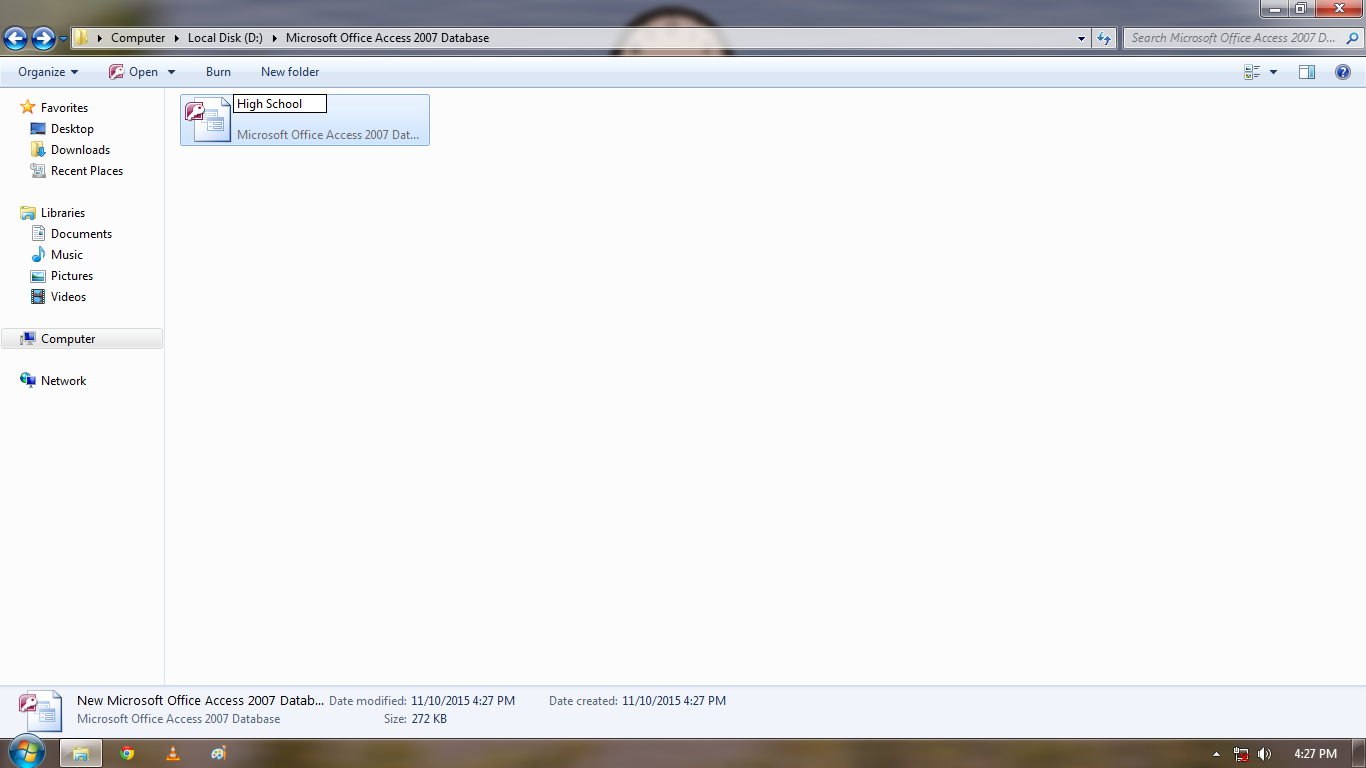
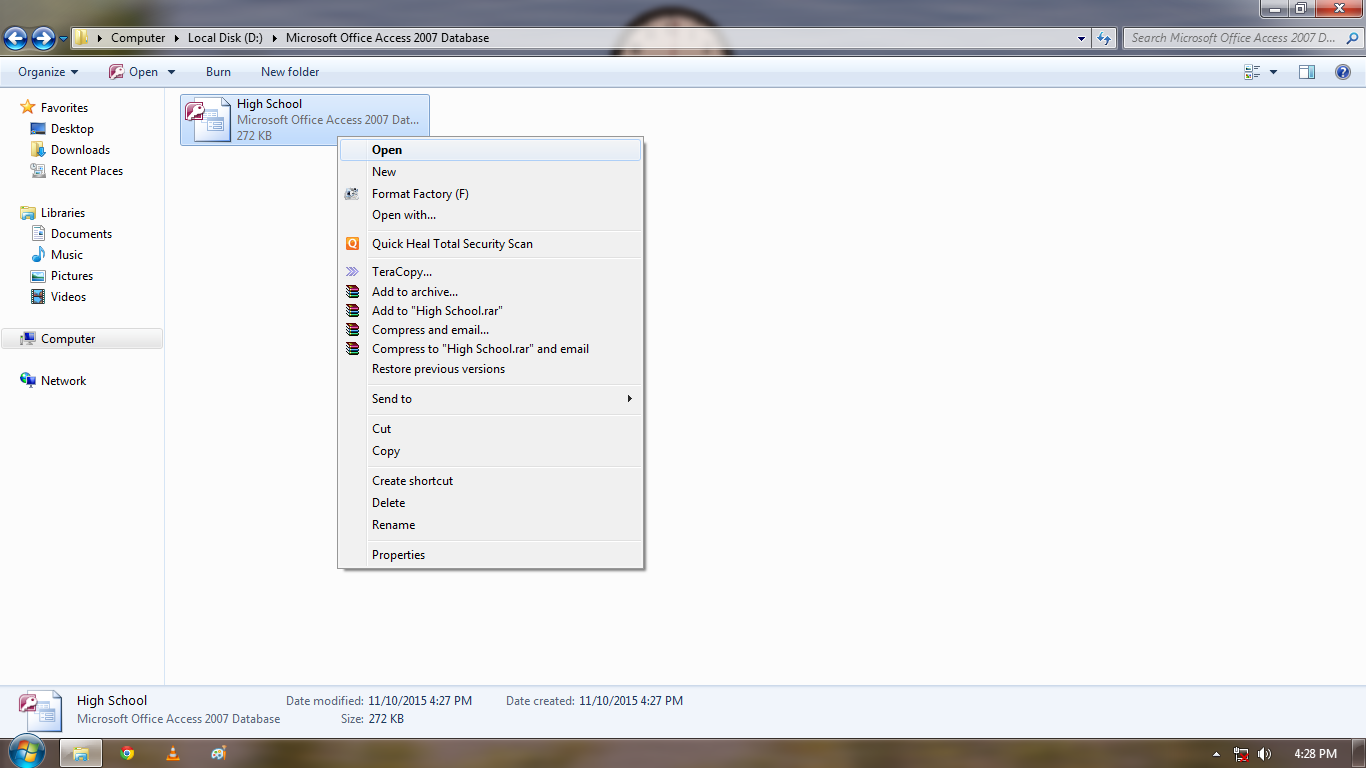
Start Process 2: Open Computer -> Open Local Disk (D :) -> Right click -> New -> Folder (Microsoft Office Access 2007 Database) -> Open -> Right click -> New -> Microsoft Office Access 2007 Database (High School) -> Open

Snapshots: